
Asana is where your team plans and tracks the work. So when users report a bug, point out a typo or suggest an improvement, that feedback should arrive as a task in the right project, not in an inbox someone has to copy from.
How it works: add the Saber Feedback button to your website or web app, connect it to an Asana project, and every feedback report becomes a new Asana task. Each task includes the user’s message, their screenshot, the page they were on, and their browser and device details. Your users don’t need an Asana account.
- Set up the Asana integration in three steps
- What each Asana task includes
- Saber Feedback vs Asana forms
- Ask for the feedback your team needs
- Frequently asked questions
Set up the Asana integration in three steps
1. Add the feedback button to your site
Sign up for a 30-day free trial, create a feedback form, and paste the code snippet into your website. It takes a few minutes, and there are plugins and guides for WordPress, Shopify and other platforms. Our guide on how to add a feedback button to your website walks through it.
2. Connect your Asana account
In the Saber Feedback app, open Third-party Integrations, click Setup New Integration and choose Asana. Click Connect to Asana and then Allow. There’s no API key to copy: Saber Feedback connects to Asana securely with OAuth.
Then choose the Asana project for new reports and set the task name. You can include a summary of the user’s message in the task name automatically, so your team can scan the project at a glance.
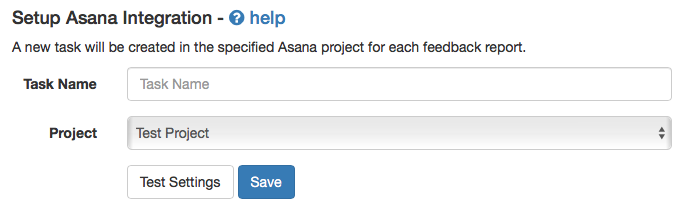
3. Send a test report
Click Test Settings to send a sample report to Asana and check it arrives as expected, then save. From then on, every feedback report from your site creates a new task in that project.
The Asana integration help doc has every setting in detail.
What each Asana task includes
Saber Feedback collects the information your team needs to act on a report, so nobody has to go back to the user to ask which page, which browser, or what they saw. Each Asana task can include:
- The user’s message
- Any screenshot they attached
- Any category or rating they chose, if your form includes them
- The page URL
- The user’s browser, browser plugins, operating system and device
- The user’s location and IP address
- The user’s email address, if they gave it or you passed it in from your app
- When the feedback was submitted
- JavaScript events, including errors, from before the report was sent
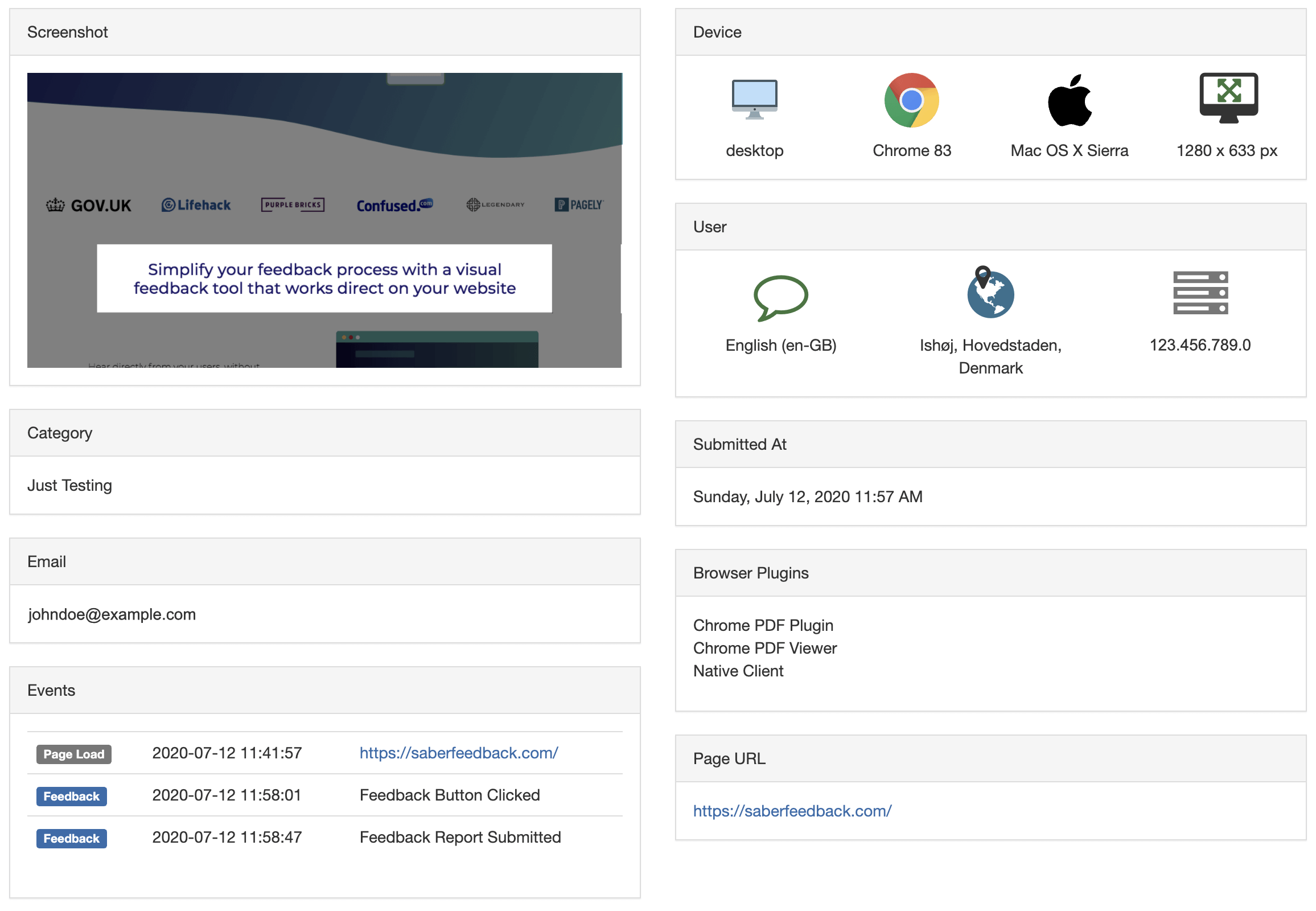
Once the task is in Asana, you handle it like any other: assign it, set a due date, move it through your board’s sections, and comment with your team.
Saber Feedback vs Asana forms
Asana’s own forms can also create tasks from submissions. They work well for internal requests, but users have to open a separate form link, and the task only contains what they type or upload. Saber Feedback is built for feedback about your website or app, collected on the page where the user is.
| Asana forms | Saber Feedback | |
|---|---|---|
| Where users give feedback | A separate form page | On any page of your site, from a feedback button |
| Screenshot of the page | Only if users take and upload one | Yes, taken from the feedback form |
| Page URL, browser and device details | No | Added automatically, plus JavaScript events |
| Different forms on different pages | Separate links | Yes |
| Button styling and languages | Not applicable | Custom label, color, position and language |
| Send feedback elsewhere too | Asana only | Asana plus email, Slack, Jira and more |
| Price | Included with paid Asana plans | From $99/month, on plans with screenshots and integrations |
Ask for the feedback your team needs
Forms can be as simple or detailed as you like. Choose from 14 field types, including text boxes, dropdowns, checkboxes, and star and emoji ratings, and show follow-up questions based on earlier answers. You can use different forms on different parts of your site: a bug report form in your app, and a content feedback form on your marketing pages.
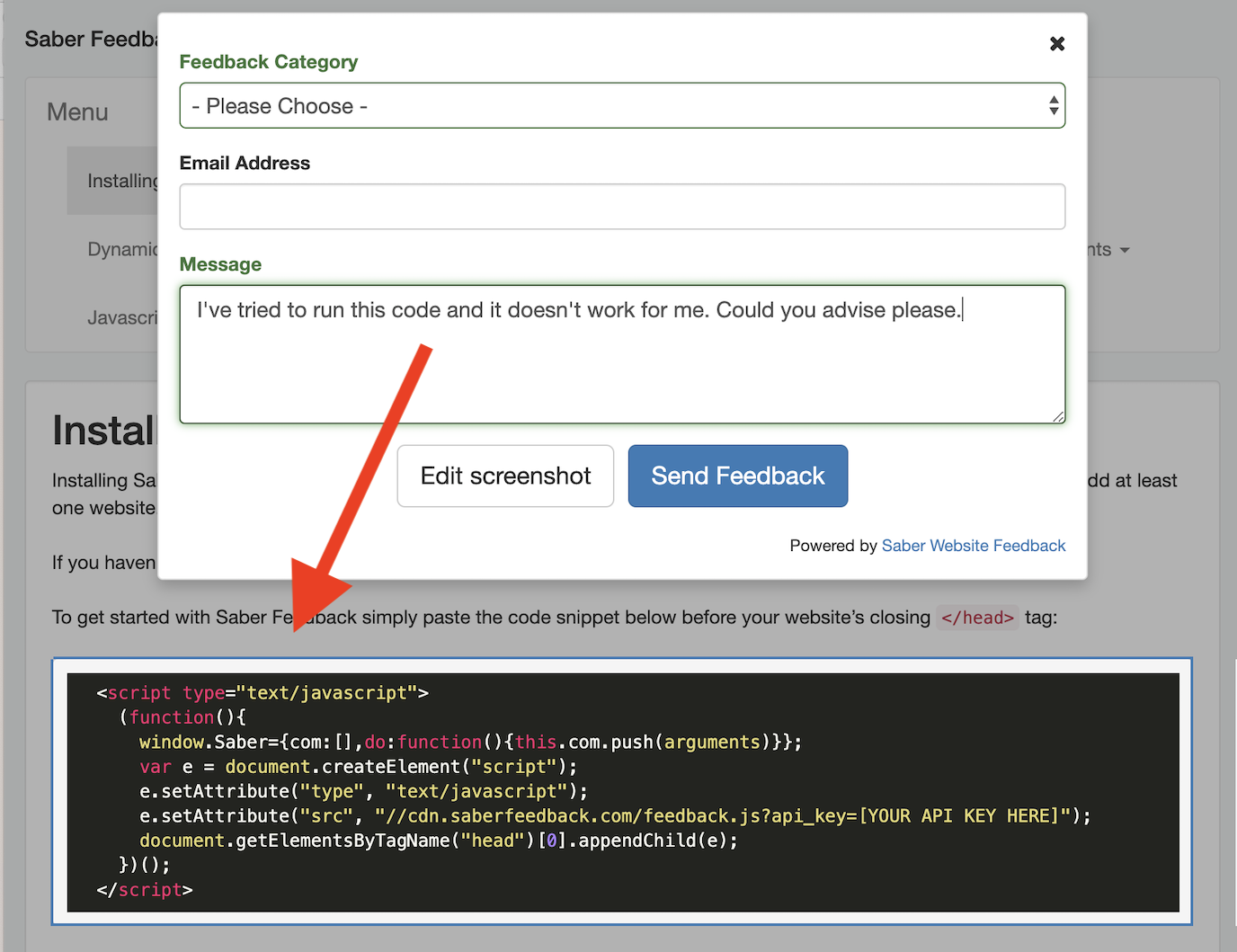
You can style the feedback button to match your site, or open the form from your own link or icon.
Frequently asked questions
Do my users need an Asana account?
No. Users fill in the Saber Feedback form on your site, and Saber Feedback creates the Asana task using the Asana account you connect. Your users never see Asana.
Can I send feedback to more than one Asana project?
Yes. You can send different forms to different Asana projects from one Saber Feedback account. For example, bug reports from your app can go to your development project, and content feedback from your help pages to your docs project.
Can feedback go to other tools as well?
Yes. Saber Feedback also integrates with Jira, GitHub, GitLab, Bitbucket, Trello, Basecamp, Redmine, Zendesk, Slack and Zapier, and can send feedback by email or webhook. See all integrations.
Where can I use the feedback button?
On almost any website or web app, including staging and test sites, client sites during a redesign, customer portals, WordPress and Shopify sites, and most learning management systems.
Try Saber Feedback with Asana free for 30 days
Set up a feedback button that sends complete, actionable reports straight to Asana. No credit card required.