
Your team already talks in Slack. When a user reports a broken page, a typo or a confusing step, the quickest way to get it fixed is to put it in front of the people who can fix it, in the channel they’re already reading.
How it works: add the Saber Feedback button to your website or web app, connect it to a Slack channel, and every feedback report is posted there as soon as it’s sent. Your team sees what the user said, which page they were on and the details needed to act on it. Your users don’t need a Slack account.
- Set up the Slack integration in three steps
- What your team sees in each report
- Use Slack alongside your issue tracker
- Ask for the feedback your team needs
- Frequently asked questions
Set up the Slack integration in three steps
1. Add the feedback button to your site
Sign up for a 30-day free trial, create a feedback form, and paste the code snippet into your website. It takes a few minutes, and there are plugins and guides for WordPress, Shopify and other platforms. Our guide on how to add a feedback button to your website walks through it.
2. Connect your Slack workspace
In the Saber Feedback app, open Third-party Integrations, click Setup New Integration and choose Slack. Click Connect to Slack and then Authorize. There’s no API key to copy: Saber Feedback connects to Slack securely with OAuth.
Then choose the channel where new reports should be posted.
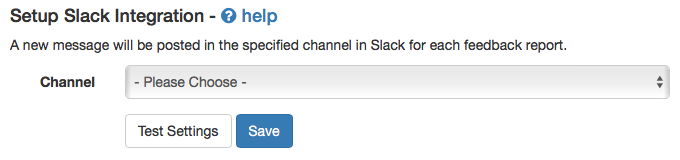
3. Send a test report
Click Test Settings to post a sample report to Slack and check it arrives as expected, then save. From then on, every feedback report from your site is posted to that channel.
The Slack integration help doc has every setting in detail.
What your team sees in each report
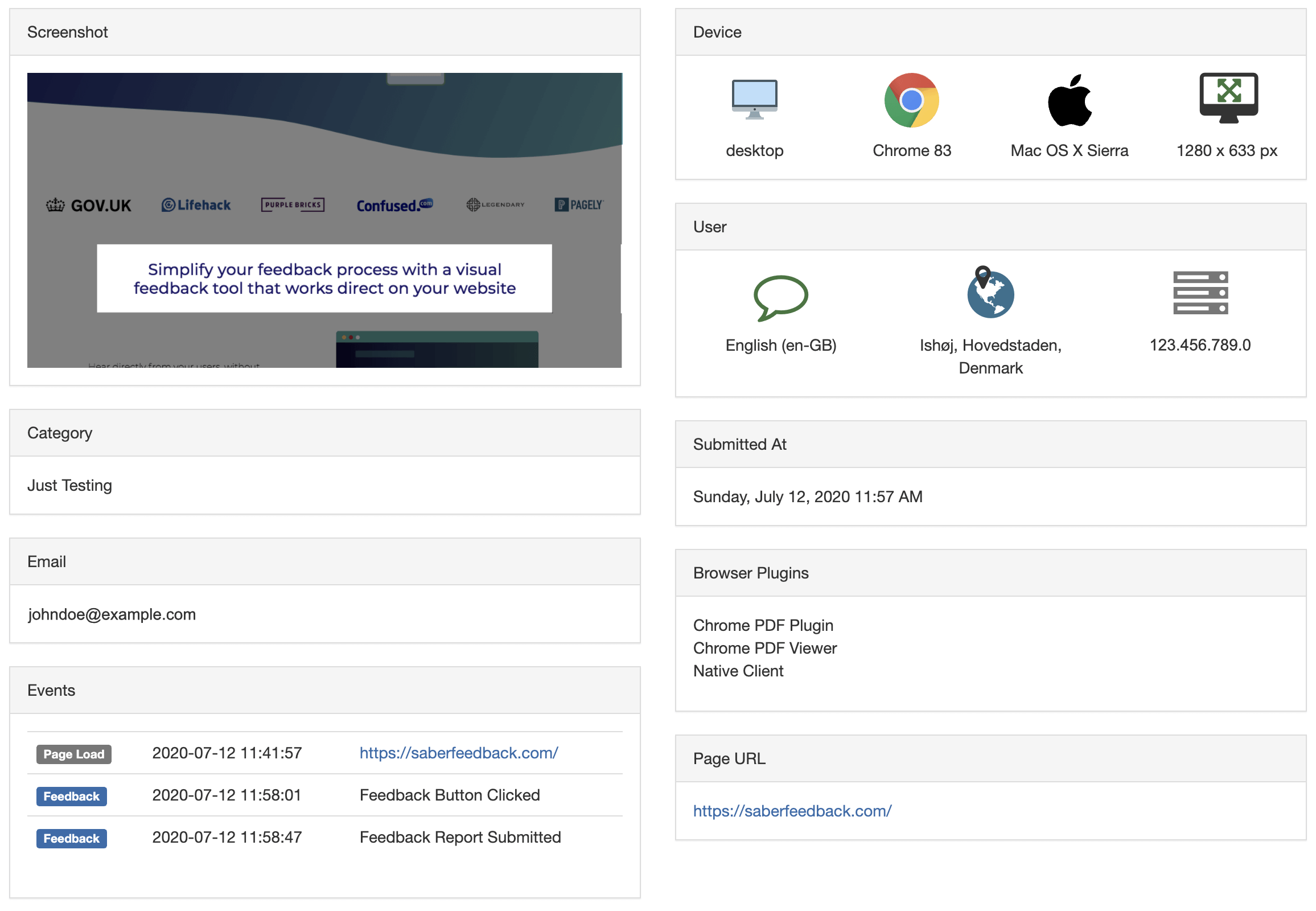
Saber Feedback collects the information your team needs to act on a report, so nobody has to go back to the user to ask which page, which browser, or what they saw. Each report can include:
- The user’s message
- Any screenshot they attached
- Any category or rating they chose, if your form includes them
- The page URL
- The user’s browser, browser plugins, operating system and device
- The user’s location and IP address
- The user’s email address, if they gave it or you passed it in from your app
- When the feedback was submitted
- JavaScript events, including errors, from before the report was sent
Because reports land in a channel, your team can discuss them in a thread, react to show who’s taking a look, and spot patterns when several users report the same problem.
Use Slack alongside your issue tracker
Slack is great for seeing feedback quickly. It’s less good at making sure every report gets dealt with, because messages scroll away. Many teams send each report to two places: Slack, so the team knows straight away, and an issue tracker, so nothing gets lost.
Saber Feedback can send the same report to several integrations at once. Pair Slack with Jira, Asana, Trello, GitHub or Zendesk, and your team gets the alert and the task from one feedback button.
Ask for the feedback your team needs
Forms can be as simple or detailed as you like. Choose from 14 field types, including text boxes, dropdowns, checkboxes, and star and emoji ratings, and show follow-up questions based on earlier answers. You can use different forms on different parts of your site: a bug report form in your app, and a content feedback form on your marketing pages.
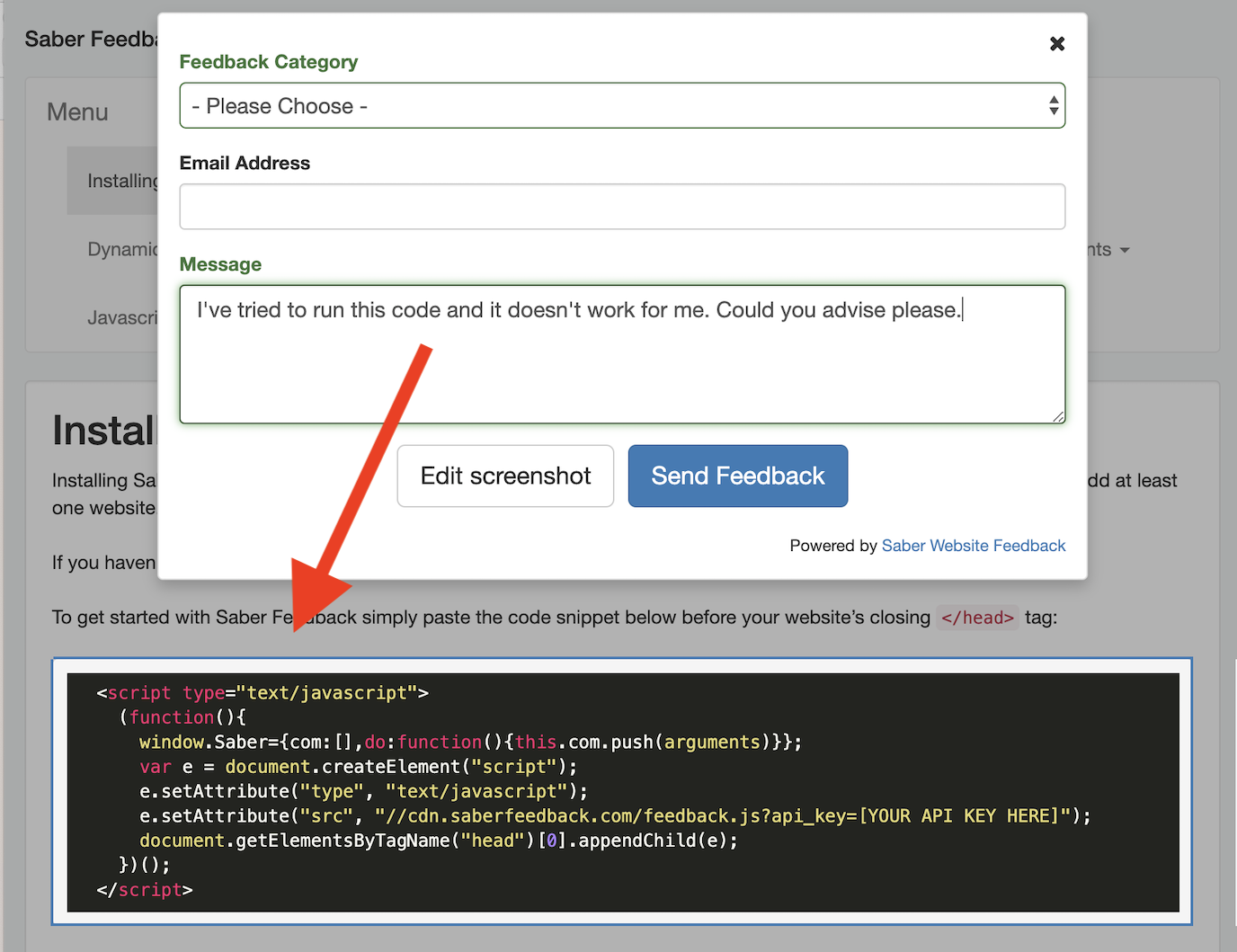
You can style the feedback button to match your site, or open the form from your own link or icon.
Frequently asked questions
Do my users need a Slack account?
No. Users fill in the Saber Feedback form on your site, and Saber Feedback posts the report using the Slack workspace you connect. Your users never see Slack.
Can feedback go to other tools as well?
Yes. Saber Feedback also integrates with Jira, GitHub, GitLab, Bitbucket, Trello, Asana, Basecamp, Redmine, Zendesk and Zapier, and can send feedback by email or webhook. See all integrations.
Where can I use the feedback button?
On almost any website or web app, including staging and test sites, client sites during a redesign, customer portals, WordPress and Shopify sites, and most learning management systems.
Try Saber Feedback with Slack free for 30 days
Set up a feedback button that posts complete, actionable reports straight to Slack. No credit card required.