
Website feedback tools are a simple and inexpensive way to gather feedback from the people using your site. You can use that feedback to fix urgent bugs, improve the user experience and surface ideas from customers.
You’ll get the best results if you give the tool a specific job, rather than putting a generic “feedback” tab on every page of every site you run. This guide covers five places where a feedback tool earns its keep, with real examples and a checklist for each.
If you’re already shopping for one, our comparison of the best website feedback tools in 2026 sets the main options side by side. You can also try Saber Feedback free for 30 days, no credit card needed.
- Feedback tool for web portals
- Feedback tool for website widgets
- Feedback tool for sections of your website
- Feedback tool for online courses
- Feedback tool for beta web projects

Feedback tool for web portals
Web portals give employees, customers or suppliers a single place to access information. That information is usually private, behind a username and password.
Examples include student enrollment portals, sales portals, customer self-service portals, membership portals, CRM portals, intranets and partner portals.
This is an example of a customer self-service portal:
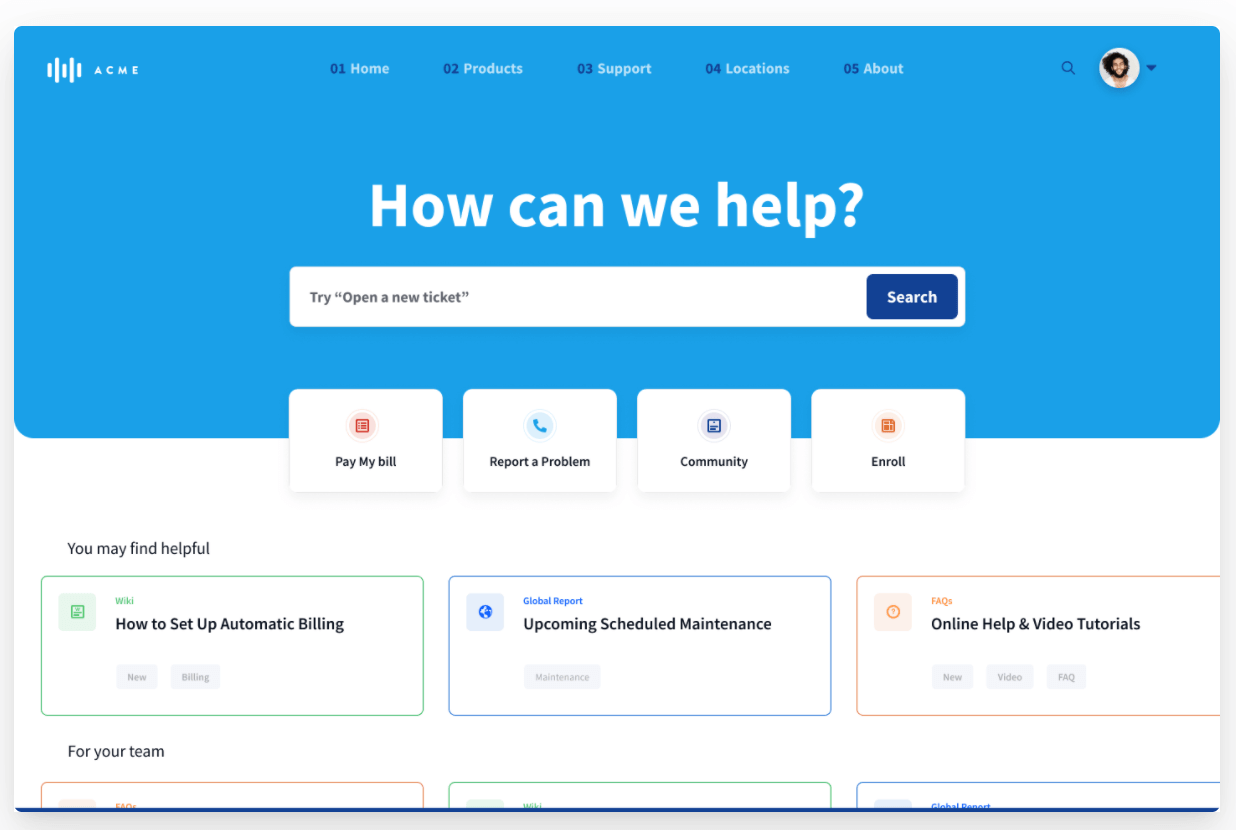
Portals need regular improvement and maintenance. You’ll keep running into the same kinds of problem:
- Technical problems, including bugs
- Content mistakes and inaccuracies
- Usability issues
- General questions and queries
Some of these get flagged through email or phone. Others turn up on social media, in a chat window or not at all. When feedback is spread across many channels, problems go unnoticed, and technical issues take longer to fix because your team has to go back and forth with the user to find out what happened.
A feedback tool inside the portal collects that feedback in one place, along with the technical details your team needs to act on it.
Western Governors University (WGU) case study
WGU used a feedback tool (Saber Feedback) as an integral part of their student enrollment portal. Enrollment operations manager Paul Donoghue explained:
Saber Feedback is the way that our students provide (typically technical issue) feedback through their WGU Enrollment Portal. Although they do often use it for questions/concerns intended for their Enrollment Counselor or sometimes the Financial Aid office or another department as well.
It helps our tech team monitor any issues on the portal and also provides an additional method of outreach besides email/phone.
What to look for in a web portal feedback tool
- Easy for your users, so they send feedback at the moment they hit a problem
- Sends feedback somewhere that makes sense for your team. If you don’t want another dashboard, choose a tool that connects to your project management or help desk software
- Screenshots, so users can show you what they mean instead of describing it
- Automatic technical details such as the page URL, browser, operating system and JavaScript errors, so support can identify the problem without asking for more information
- A customizable form, so you can ask for the types of feedback you need
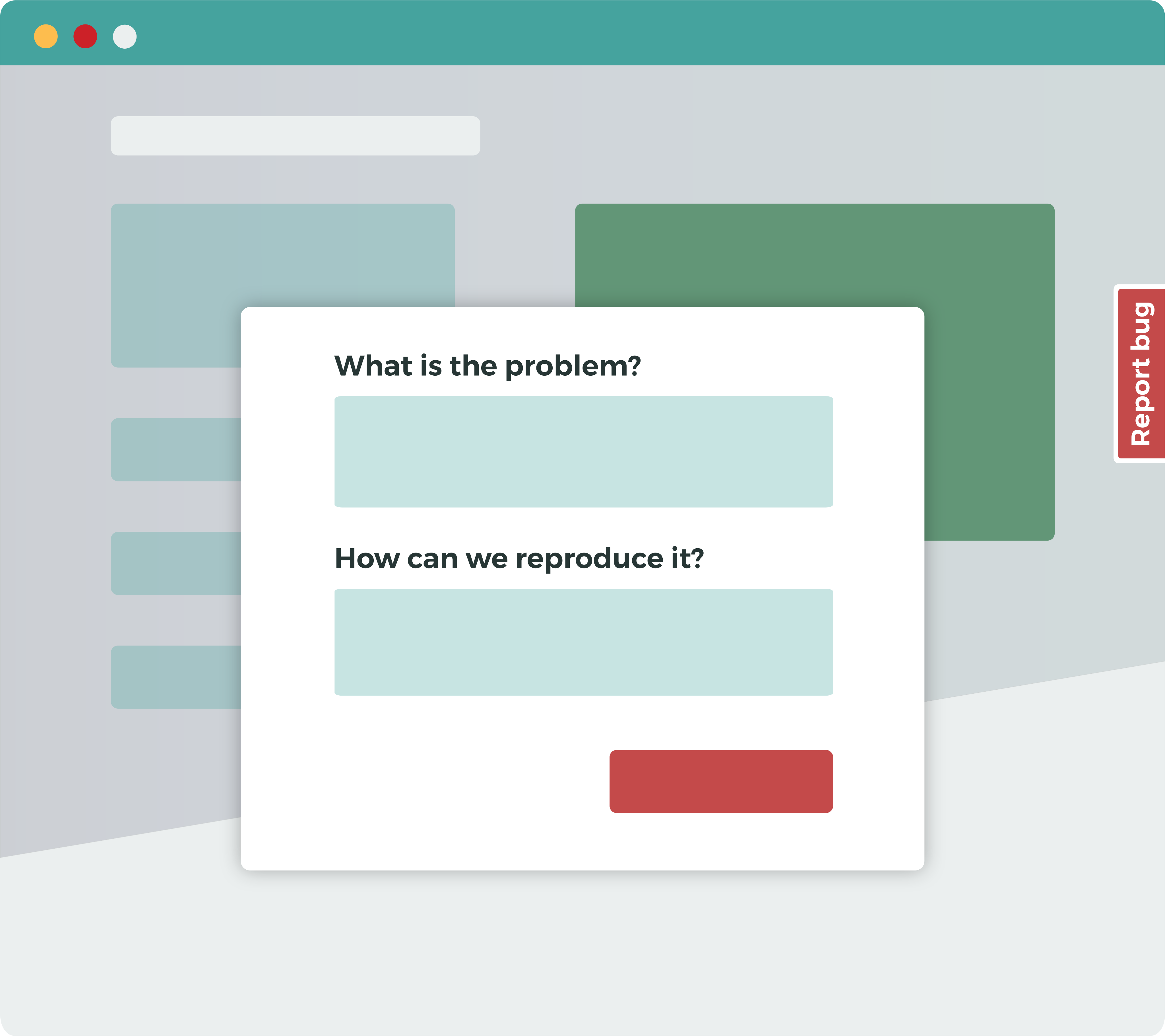
Feedback tool for website widgets
You can use website widgets to generate leads, clarify information or offer a personalized experience. Because each widget has a specific aim, a feedback form tailored to that task helps users complete it.
Confused.com case study
In this example, Confused.com wants visitors to get a quote for home insurance. The feedback button is there in case they run into problems.
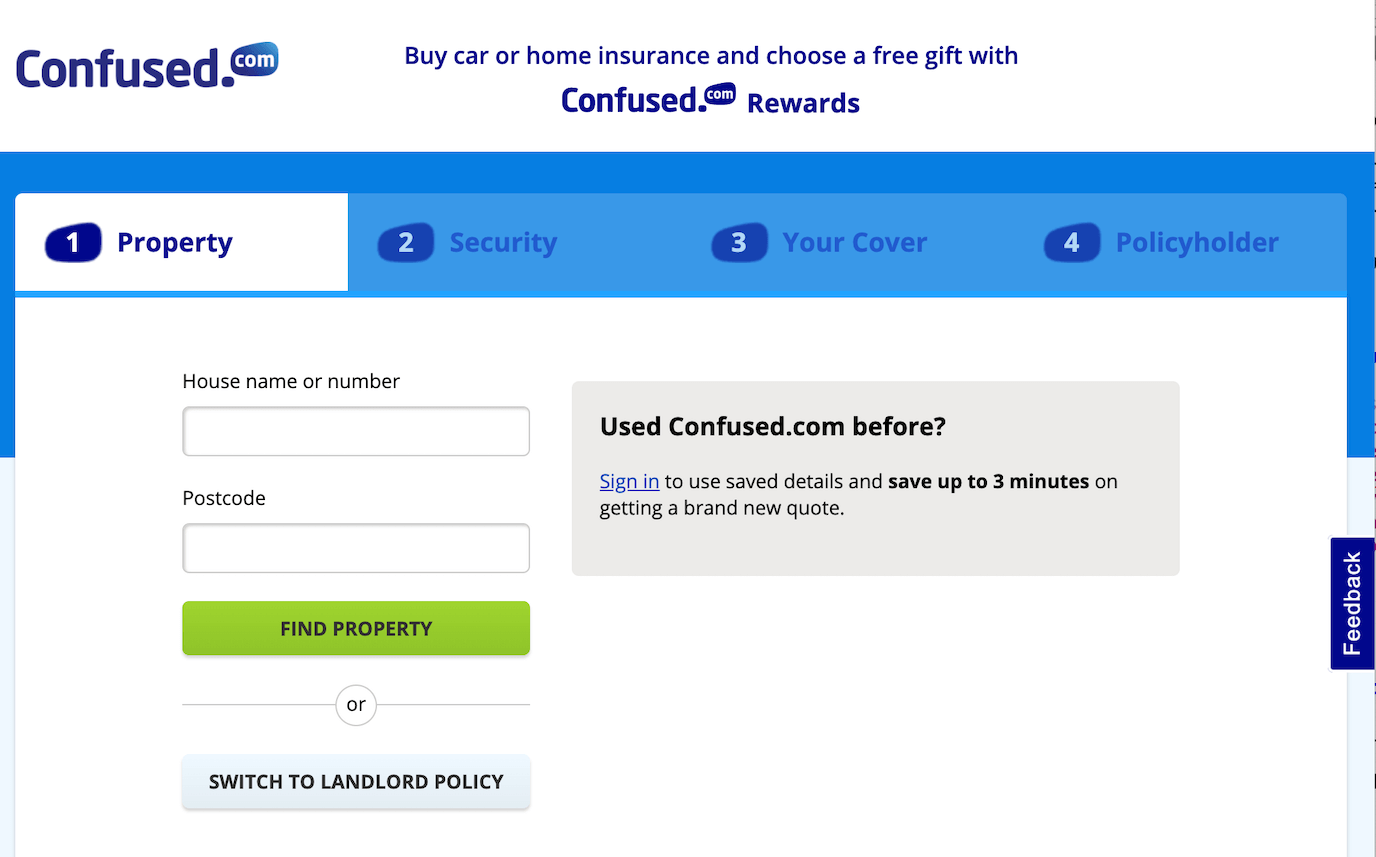
Clicking the button opens this form:
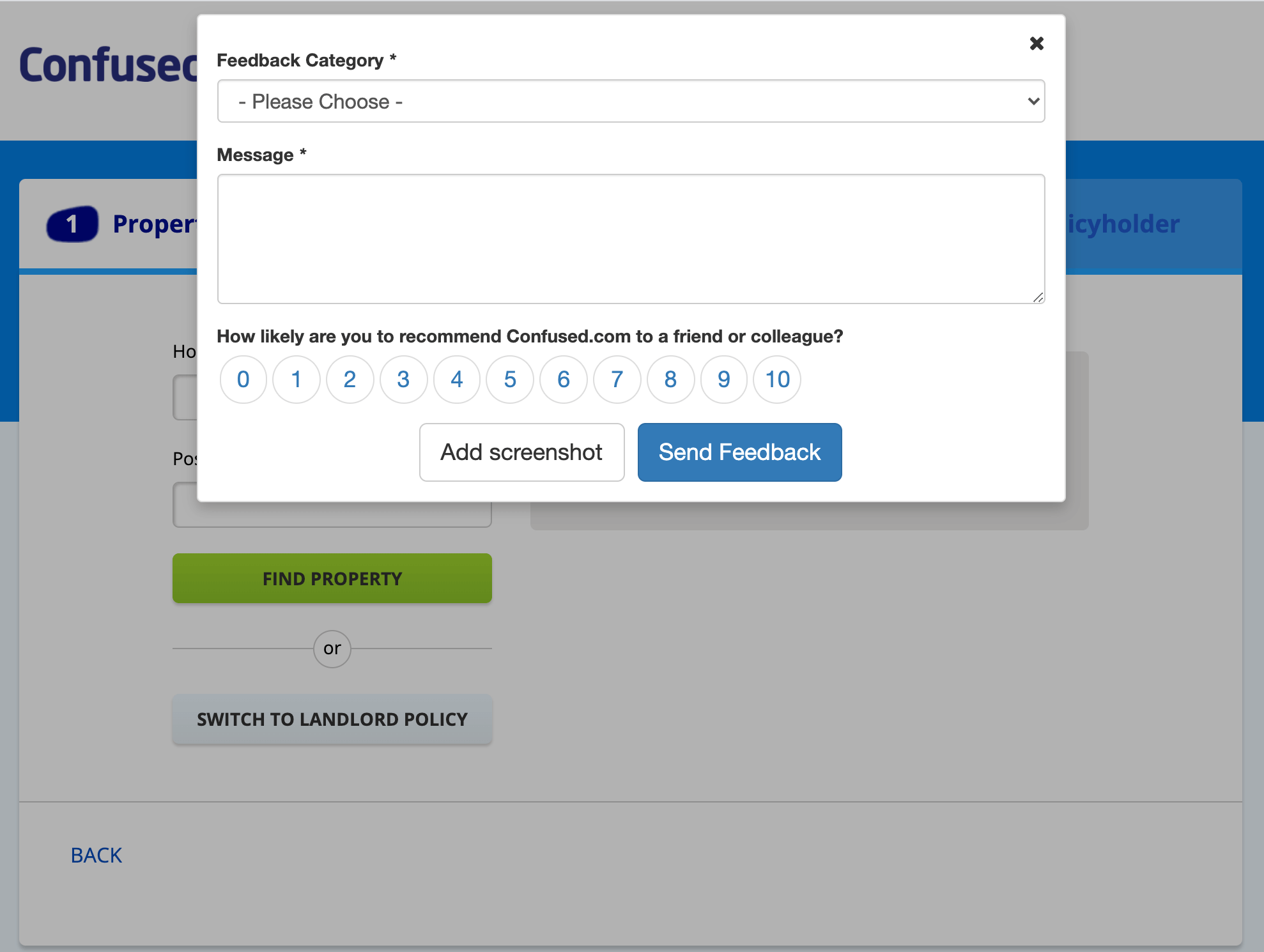
Users can report a problem or ask a question, and give a quick satisfaction rating. That rating lets Confused.com keep track of how happy people are with the experience.
AI chat vs a feedback tool
Would an AI chat assistant be a better fit than a feedback tool for a widget like this?
AI support agents have improved a lot. Trained on your help content, they can answer common questions at any hour, and for a business with a good knowledge base they take real load off the support team. If most of what your users need is an answer that already exists somewhere in your documentation, AI chat is worth a look.
They are less useful when something is broken. An AI agent can’t fix a bug, and a chat transcript rarely gives a developer what they need: a screenshot of the problem, the page it happened on, the browser and any JavaScript errors. The user ends up describing the problem in words, and someone on your team still has to pass it to the developers by hand.
A feedback tool is not conversational, but it captures that context automatically and sends it to the place your team already works, such as Jira, Trello or Slack. Many teams use both: chat for questions, a feedback button for bugs and suggestions. We go into this in more detail in website feedback tool vs live chat widget, and we compare chat, feedback buttons and contact pages here.
What to look for in a web widget feedback tool
- Triggered by the user. Unlike pop-ups, a button doesn’t get in the way of people who are completing the task without trouble
- A flexible form builder, so you get the information you need in a user-friendly way
- Integrations with your help desk or project management software, or email delivery, so processing feedback takes as little time as possible
Feedback tool for sections of your website
Some simple feedback tools only work across every page of a site. A more flexible tool is better, because the needs of visitors on your homepage are different from the needs of people reading specialized content.
This feedback button is on the technical reference section of the Omega website:
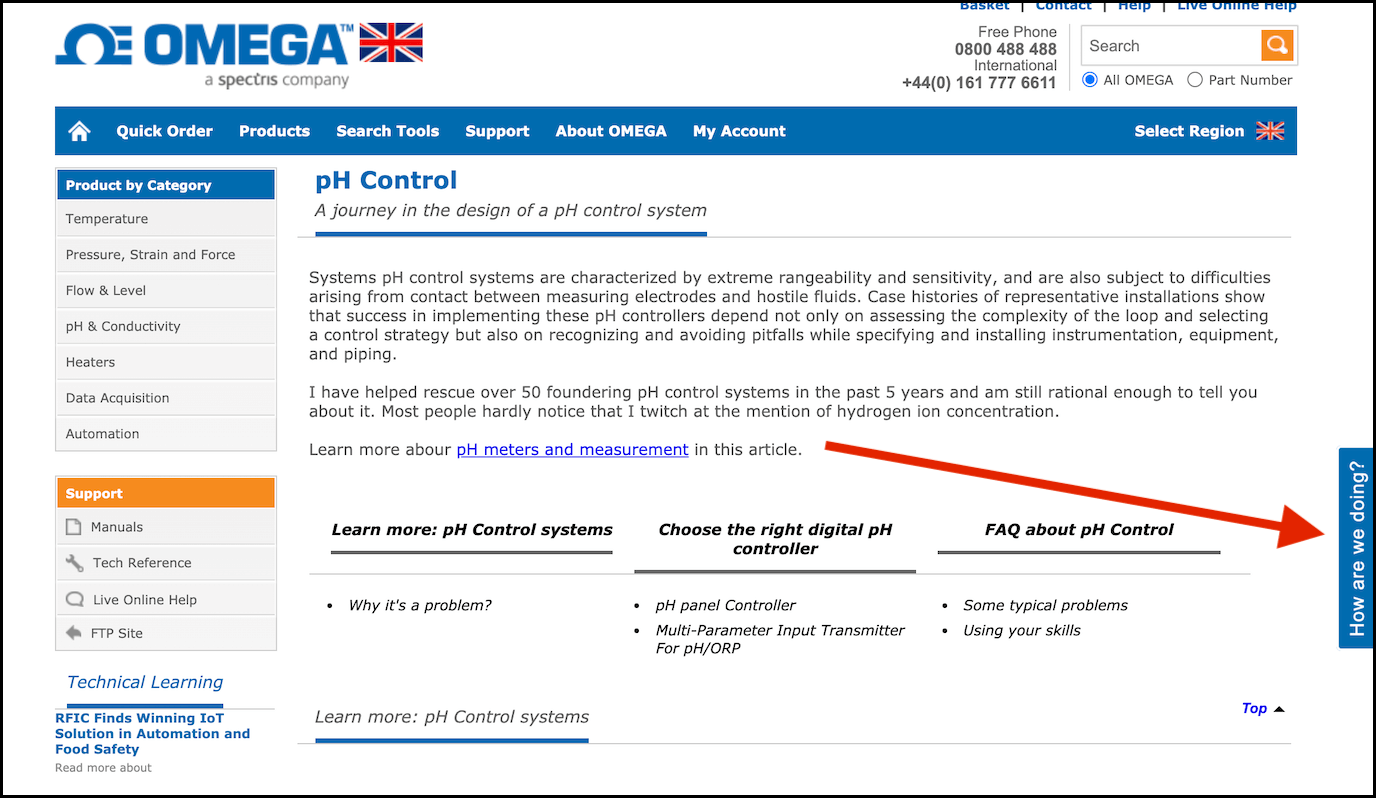
A feedback button on a homepage is rarely useful. Visitors who have just arrived want a quick look at your content to see whether you can solve their problem. Asking them for feedback, or offering help, a newsletter and so on, is a distraction at that stage.
Instead, put feedback buttons on specific sections of your website, or on a smaller related site with a specific job.
Typing Master case study
The main Typing Master website signposts all their products, including typing games, downloads and courses.
Choosing “Play free typing games” takes you to a smaller linked site, typinggames.zone, which has a feedback button.
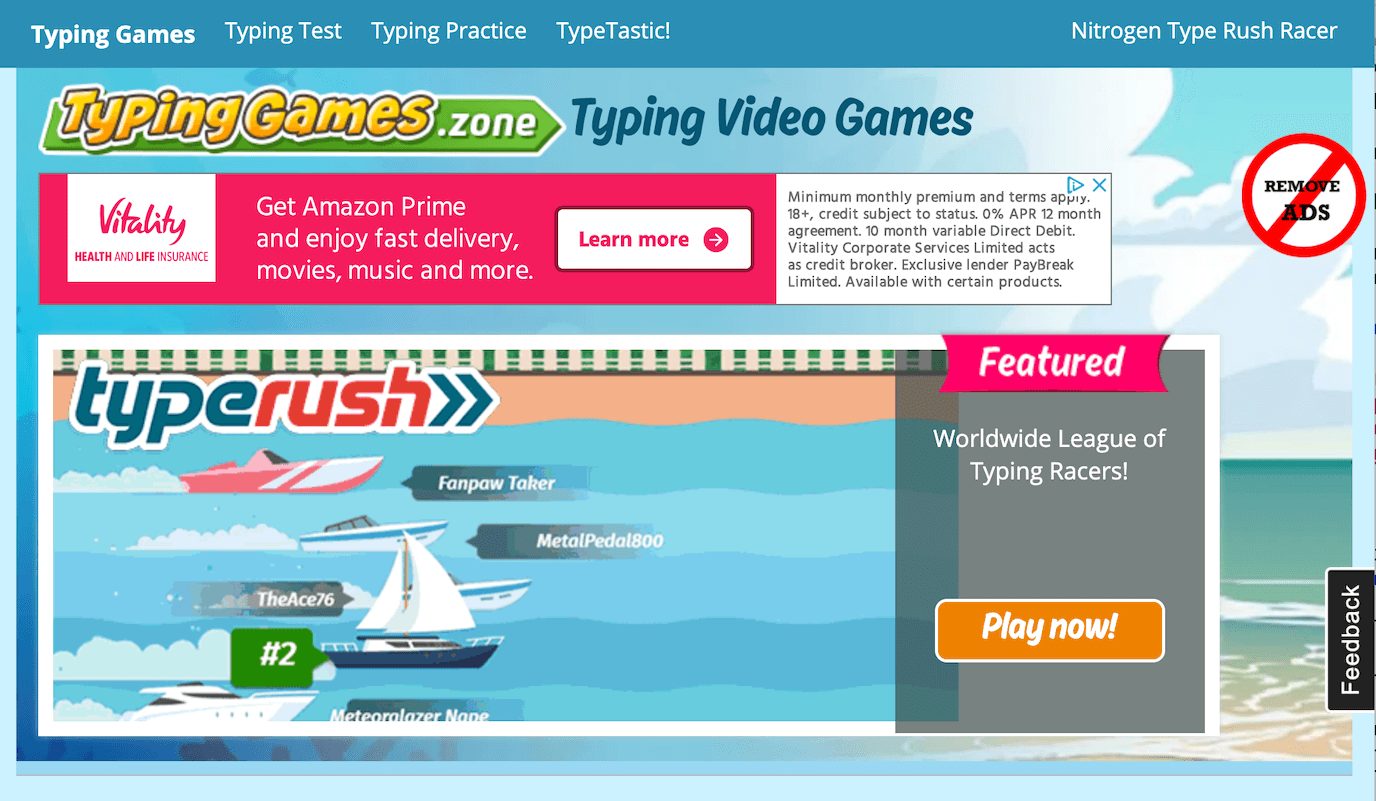
The button catches problems from people who specifically want to play the games, such as a game that won’t load. That’s a different situation from people on the main homepage, who are still working out what Typing Master is and does.
What to look for in a website feedback tool
- Can run on selected sections of a site, or on just one of your sites
- Screenshots, which make feedback simpler for users and for your support team
- A customizable button label. “How are we doing?” or “Report a problem” may suit a page better than “Feedback”
Feedback tool for online courses
Feedback tools are a good way to get early feedback on an online course. You can spot weak areas before they turn into poor satisfaction ratings, and ask students how they would like the course to develop, so you aren’t relying only on your own judgment.
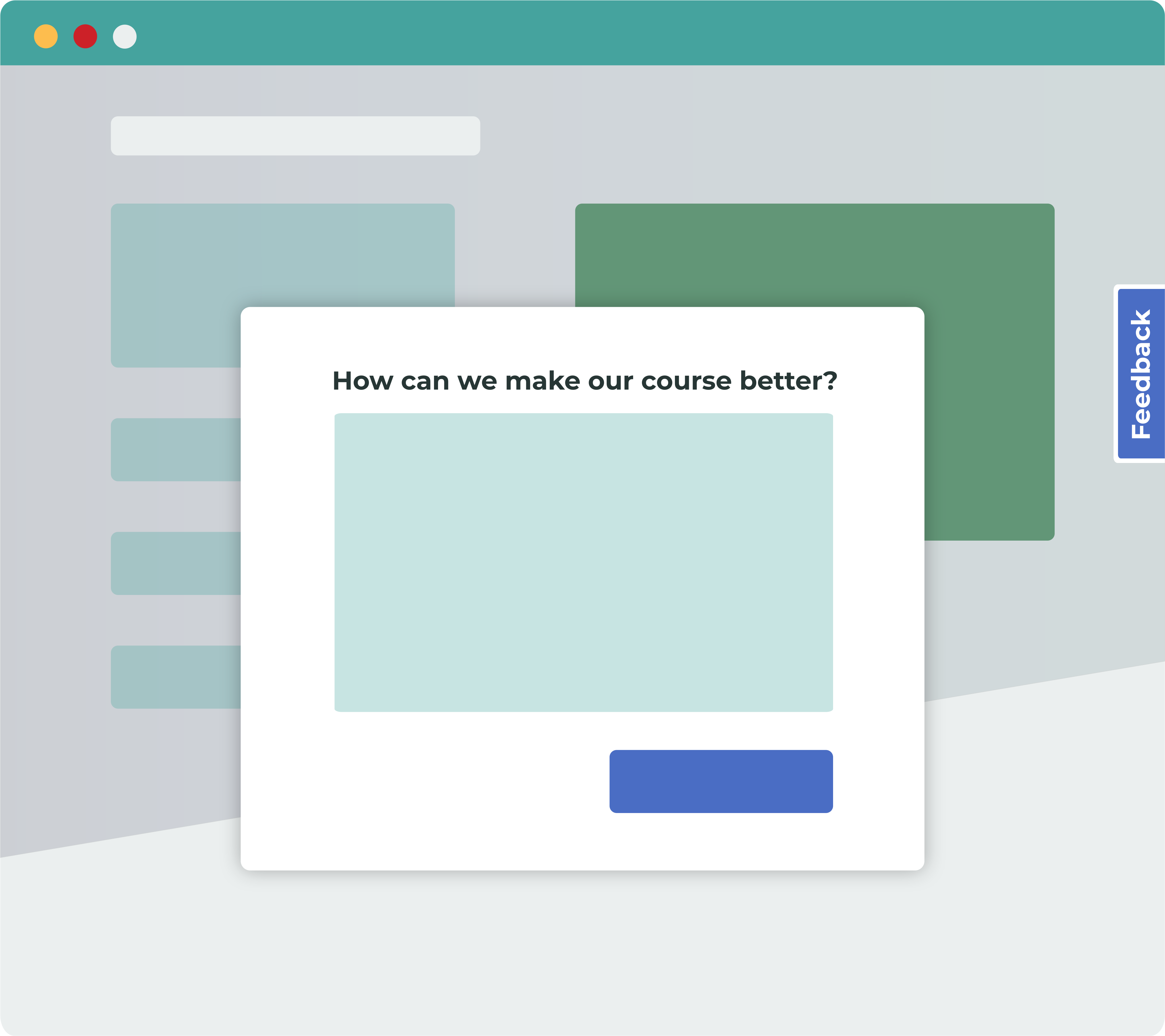
A feedback tool stays useful once the course is mature and selling. It picks up bugs, content mistakes and inaccuracies that make a course look outdated. Finding those yourself on a 200-page course is a huge task, so let your students help. Showing that you care about keeping the course accurate also helps satisfaction.
You can also use a feedback form to measure satisfaction at different points in the course and spot worrying trends early.
Our article on how to improve your online course so you sell more has a section on getting feedback.
AICPA case study
AICPA is the world’s largest member association representing the accounting profession. They run the Finance Leadership Programme, an online learning platform for students working towards their CGMA designation, and use Saber Feedback on it.
Christopher Roberts, learner success manager at AICPA, says:
When the programme was new and we were still building it, we wanted to add new features. So we initially asked students going through the programme to suggest improvement ideas through Saber Feedback.
Now, we mainly use Saber Feedback for content issues, so if a student comes across something they don’t think is right, or working, or a typo, it’s really great for that type of feedback.
Read the full AICPA case study.
What to look for in an online course feedback tool
- Flexible, so it works on course pages as well as a student dashboard
- Platform agnostic, so it works with your learning platform, such as Moodle
- Customizable, so you can ask for high-level ideas at first, then switch to reporting mistakes, and add a quick satisfaction rating, all with the same tool
Feedback tool for beta web projects
Feedback tools are especially useful on a beta project that needs input from many people, some of whom aren’t technical.
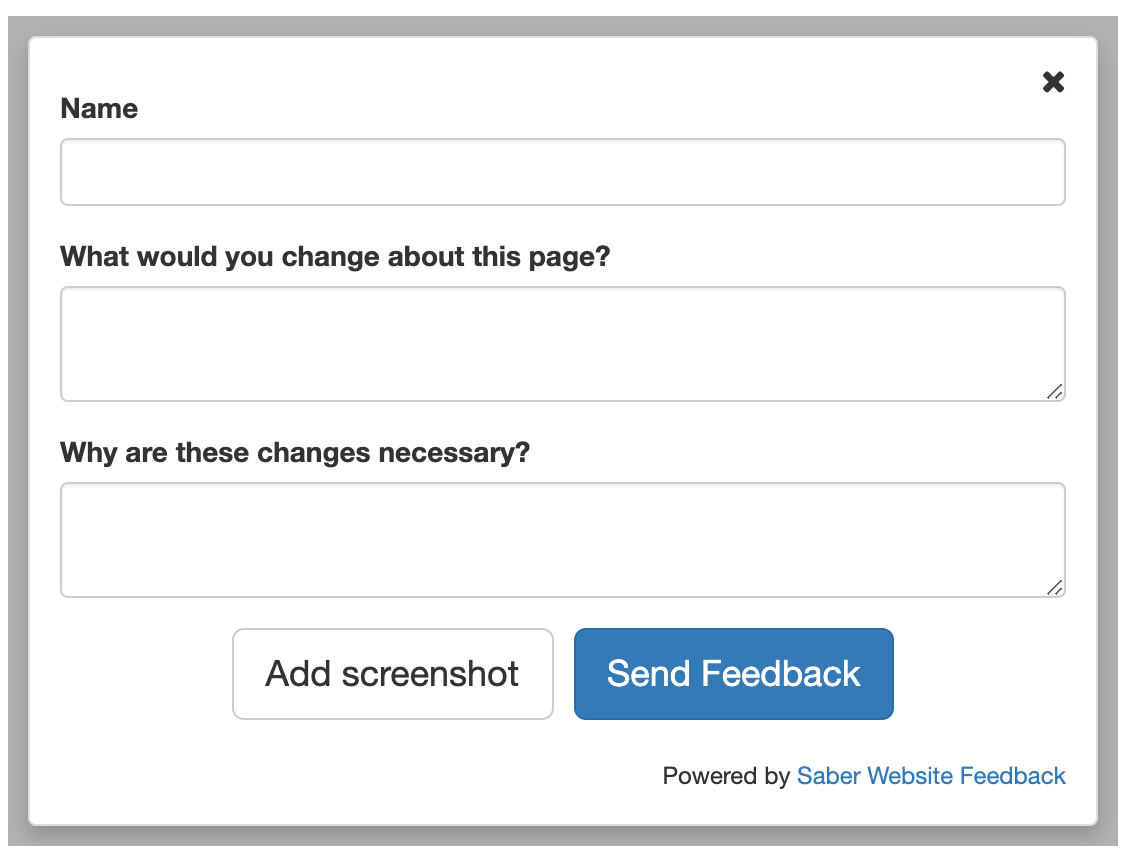
Without one, feedback arrives through different channels, and people struggle to explain which part of the page they mean.
A feedback tool with screenshots lets your team and stakeholders point at the exact problem, and keeps all the feedback in one place. Many feedback tools also send feedback straight into your existing tools.
Saber Feedback’s most popular integrations are Jira, Slack and Trello:
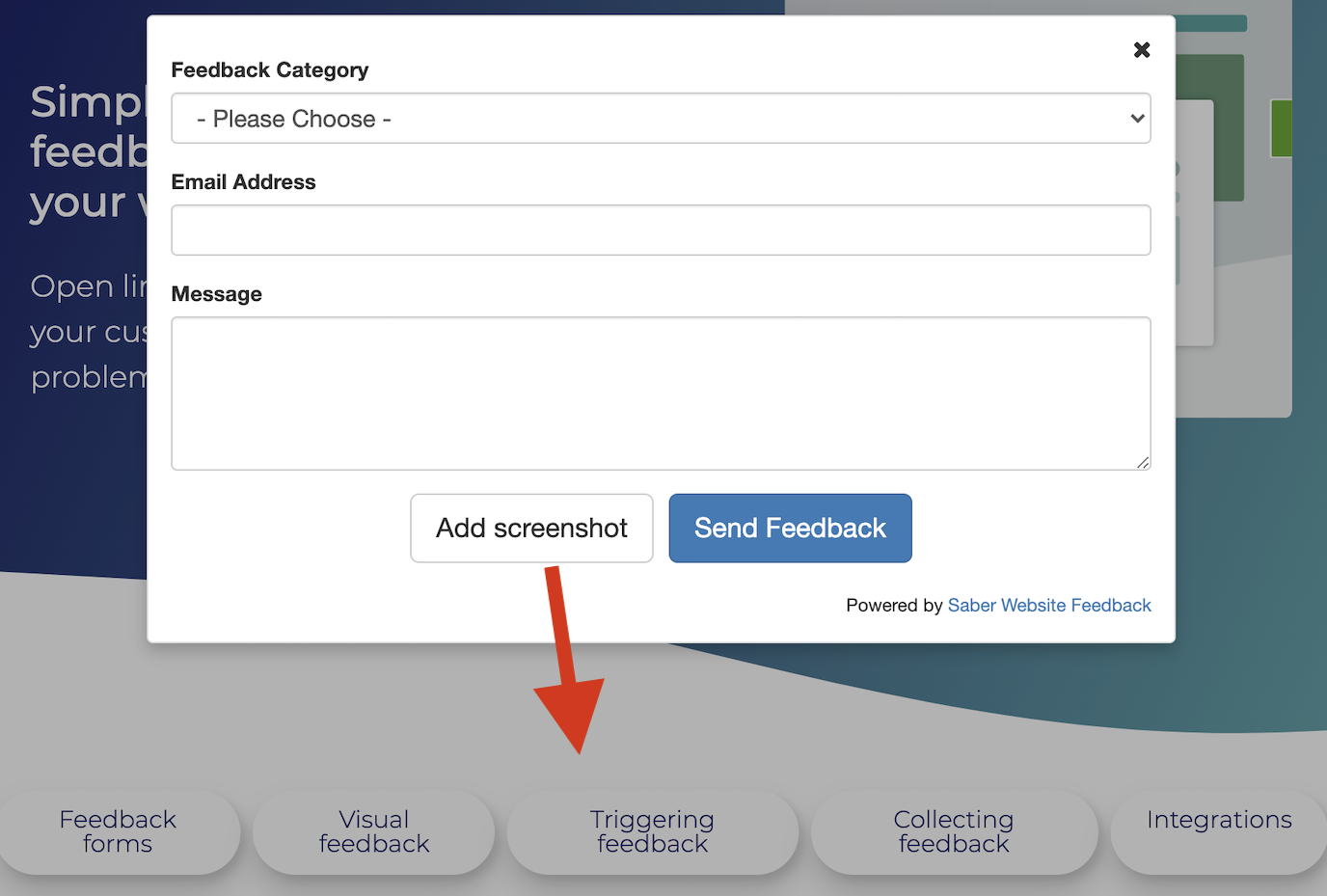
Screenshots: how they work
This example shows how screenshots work in Saber Feedback. Each form can have an “Add Screenshot” button. Here, we want to show that the link buttons aren’t working.
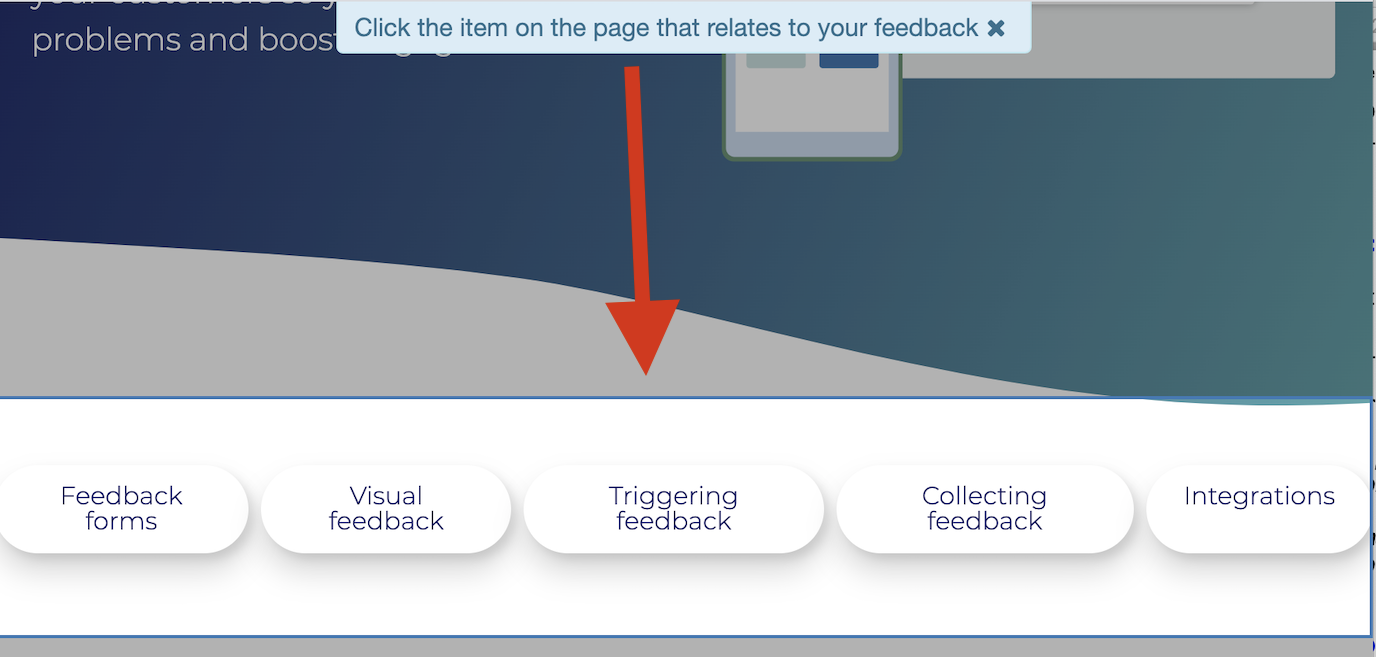
You select the part of the page you want to send feedback about. In this case, I’ve highlighted all the links.
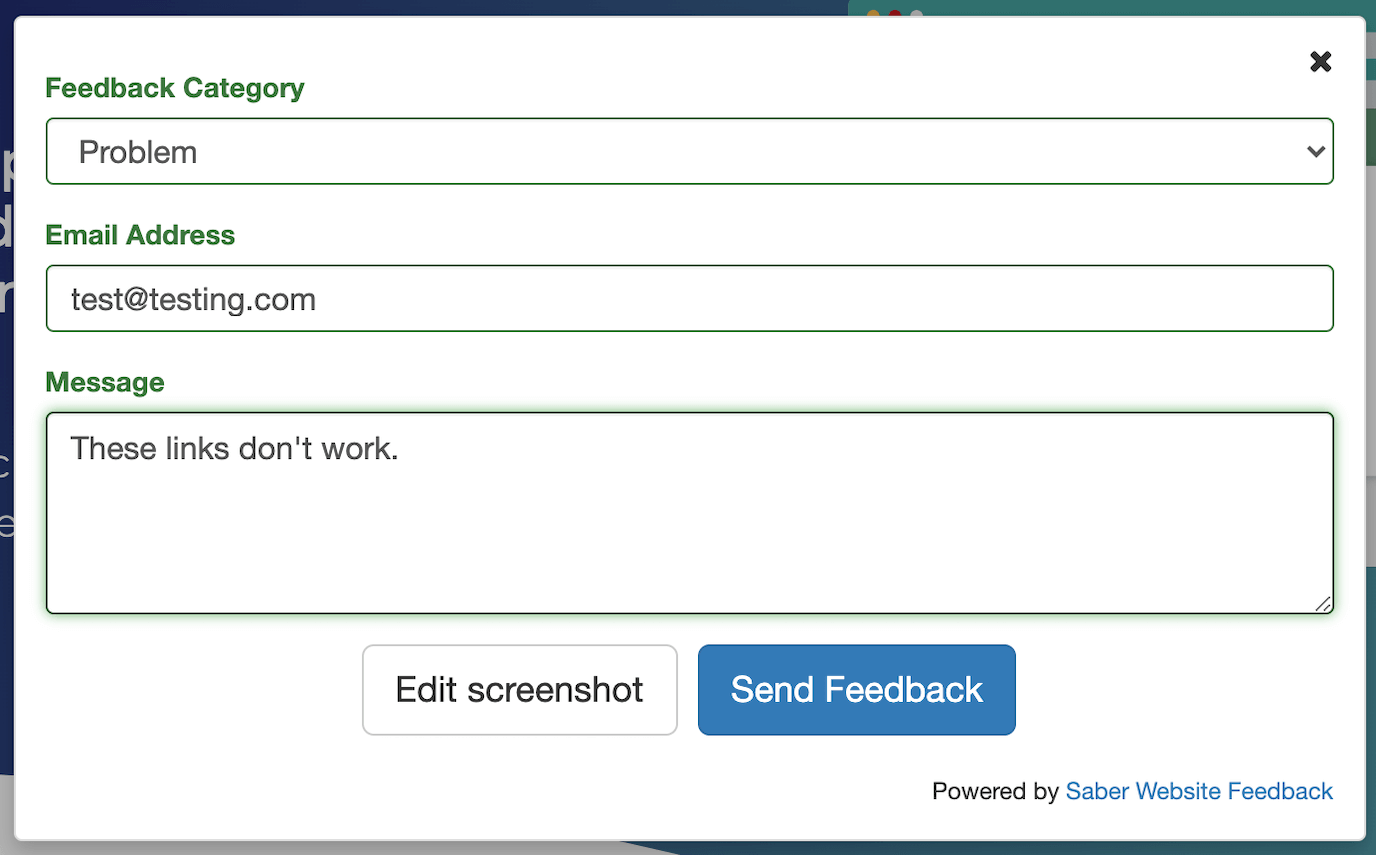
Then I add a message explaining the problem:
What to look for in a beta website feedback tool
- Works on staging sites as well as your live site
- Screenshots
- Integrations, if you don’t want another dashboard for feedback
- Easy for your team and stakeholders to use, with nothing to download or install
Try Saber Feedback, a flexible feedback tool with a 30-day free trial
Saber Feedback is easy to install, customize and connect to the tools your team already uses, including Jira, Slack, Trello, Zendesk, Asana, GitHub and GitLab.
Screenshots come with useful technical details such as the user’s browser, operating system and any JavaScript errors. Every plan includes unlimited page views and unlimited feedback, so a busy portal never hits a usage cap.
It has enough flexibility to be useful, without the extra complexity that adds to your team’s workload. The 30-day free trial includes every feature and needs no credit card.
Start your free trial, see pricing or learn more about Saber Feedback.